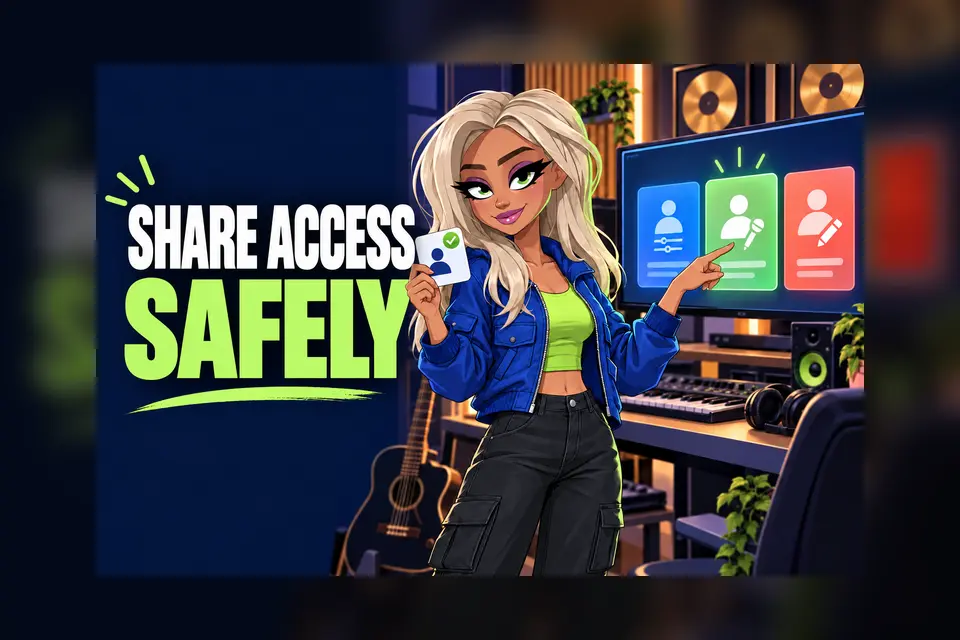
Giving a bandmate, video editor or manager access to your YouTube channel should not mean handing over your Google password. YouTube channel permissions let independent musicians invite people through YouTube Studio and choose what each person can see or change. That makes shared work clearer and reduces the risk of one login being passed around a group.
This YouTube channel permissions guide explains seven practical checks before you invite anyone. It is useful whether you run a solo channel, an Official Artist Channel or a shared band account.
1. List the jobs before choosing a role
Start with the work, not the person’s title. Write down exactly what they need to do. A video editor may need to upload and publish a music video. A bookkeeper may only need to view revenue figures. A lyric specialist may only need subtitle access. If the task is unclear, it is easy to grant more control than someone needs.
Use one short sentence for each collaborator: “Can upload and publish videos, but cannot manage other users.” This gives you a simple test when you compare YouTube’s roles.
2. Keep the Owner role for very few people
An Owner can do everything on the channel, including managing permissions and deleting the channel. YouTube also says an Owner cannot transfer ownership to another user through channel permissions. For most independent artists, this role should stay with the person or business that is responsible for the channel.
Do not use Owner as a convenient default for a trusted freelancer. Trust matters, but the role should still match the work. If someone only needs to upload a video or read analytics, choose a narrower option.
3. Compare Manager and Editor carefully
A Manager can view channel data, edit channel details, manage live streams, publish content and manage permissions in YouTube Studio. A Manager cannot delete the channel. This role may suit a long-term team member who is genuinely responsible for the wider channel operation.
An Editor can upload and publish content, manage live streams, create posts and comment as the channel. Editors cannot manage permissions, delete the channel or delete published content. That often makes Editor a better starting point for a video producer or day-to-day content helper.
Read YouTube’s current channel permission roles
4. Use limited roles when revenue is private
Editor (limited) has the same working access as Editor but cannot see revenue data. Viewer (limited) can inspect channel details and analytics without seeing revenue. These roles are useful when somebody needs performance information but does not need the financial side of the account.
A normal Viewer can see channel details without editing them, and YouTube says this role can view revenue data. Do not assume that “view only” also means “no financial information”. Check the role description before sending the invite.
5. Use Subtitle Editor for lyric and caption work
Subtitle Editor is designed for adding, editing, publishing and deleting subtitles on eligible videos. It does not allow normal video uploads, live-stream management or access to revenue data. This can be a sensible role for someone preparing accurate lyrics or captions for your music videos.
For more on preparing video information around a release, use The Hubb’s guide to writing a clear YouTube description. Keep your credits, links and lyric work in the same release checklist so fewer details are missed.
Read The Hubb’s YouTube description guide
6. Send and test the invitation
On a computer, open YouTube Studio, choose Settings, then Permissions and Invite. Enter the collaborator’s email address, select the agreed role and finish the invitation. YouTube says an invitation expires after 30 days, so ask the person to accept it promptly.
After acceptance, test one real task together. Confirm the editor can upload a private draft, the viewer can reach the required analytics, or the subtitle editor can open the right caption tools. Some actions are not available to delegates, and invited users cannot manage the channel through YouTube APIs. A short test is better than discovering a limitation on release day.
7. Review access after every campaign
Set a reminder to review Permissions when a single, tour or video campaign ends. Remove people who no longer work with you, and reduce roles when a project moves into a quieter stage. You can also change a person’s role without sharing a new password.
Keep a simple private note with the collaborator’s name, role, reason for access and review date. Do not store passwords there. If a team member leaves suddenly, the note tells you what needs checking without relying on memory.
A quick permissions checklist
- Keep control of the Google Account with the responsible channel owner.
- Choose the lowest role that still allows the agreed work.
- Use limited roles when revenue information is not required.
- Ask collaborators to use their own Google Accounts.
- Test one real task before a busy release day.
- Review and remove old access after campaigns.
What if you use a Brand Account?
If your channel is linked to a Brand Account, YouTube may ask the primary owner to move from Brand Account access to channel permissions. YouTube says existing Brand Account users must be invited and assigned the correct permission level during that move. Check the official migration guidance before changing a channel that several people already manage.
Read YouTube’s Brand Account migration guidance
Build a safer release workflow
Good access control is one part of a reliable video release. Keep the upload plan, credits, thumbnail, description and rights checks together. If you are also deciding whether to use Content ID, read The Hubb’s separate guide before opting in.
Read The Hubb’s YouTube Content ID guide
YouTube channel permissions will not replace clear communication, but they give each collaborator a defined level of access. Start with the job, choose the narrowest suitable role, test it and review it later. That is much safer than passing one password around your music team.